Folder Order: Changing Your Site’s Navigation
This section explains how to change the order of folders, subfolders, and assets in Cascade.
The left-hand navigation of your website is determined by the order of the folders and assets in Cascade. You can reorder the folders and the webpages contained within those folders, which will then change the order of links in your site’s left-hand navigation.
In this example, we’ll be changing the left navigation of a subsection of the site.
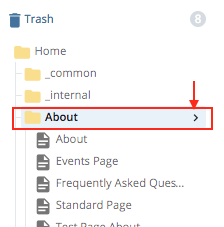
- In the navigation panel, hover over a desired sub-folder and click “>” to display its content on the site content panel.
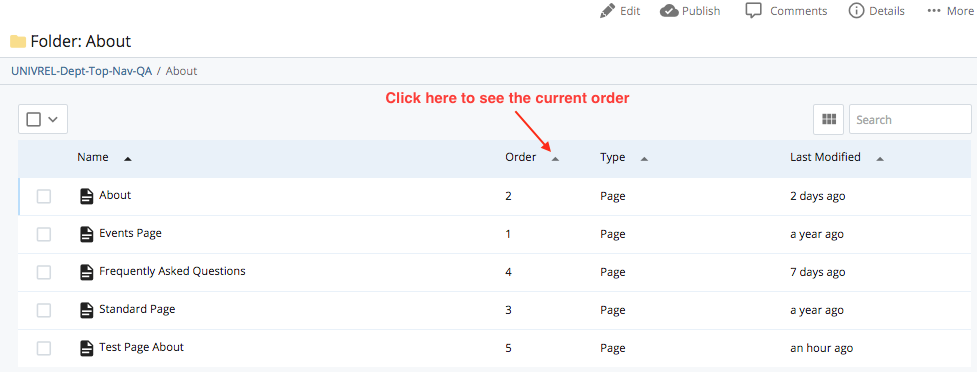
- Click the column header marked “Order.” The assets should reorder from lowest to highest. If they don’t, click “Order” again to reverse the sort order. Note that this sorting is necessary for any re-ordering to work.
- Click and drag each folder/file to the desired position, or use the arrows at right to move them up or down in the order. Your changes will be saved automatically when you navigate away from the folder.
NOTE: In order for these changes to display on the web, you must re-publish the entire folder you’ve re-ordered. See “Publishing Your Webpages” to learn more about publishing your website folders.